Installation of SDK#
This page is the practical setup guide for developers.
Use it when you need to:
- install the SDK for the first time
- prepare a machine for extension development
- verify the compiler, CMake, and Qt requirements for the current SDK
- launch the developer build of SAMSON after installation
If SAMSON itself is not installed yet, start with the end-user instructions in the User Guide: Getting Started, then return here.
Download SAMSON SDK#
Sign in to SAMSON Connect, open the Download page, and click Download the SAMSON SDK.
During installation, you will be asked for your SAMSON SDK key. The key is shown on the download page and is also available from your account on SAMSON Connect.
Requirements#
The SDK targets 64-bit operating systems on supported desktop platforms:
- Windows 11, Windows 10.
- Linux: Ubuntu 22.04 and newer, CentOS, and other similar Linux OS.
- Mac OS (64-bit Intel and ARM): Tahoe (macOS 26), Sequoia (macOS 15), Sonoma (macOS 14), Ventura (macOS 13), Monterey (macOS 12).
Older operating system versions are not part of the tested matrix. If installation fails on your setup, check the SAMSON Connect Forum.
Before installing the SDK, make sure the regular SAMSON application is already installed.
If you need requirements for another SDK release, see All versions.
Requirements on Windows#
- A compatible compiler and IDE: Visual Studio 2026 Community or Professional or an older supported version such as VS 2022.
- For marketplace compatibility, note that SAMSON and extensions distributed on SAMSON Connect are built with Visual Studio 2022.
- CMake 4.0 or newer. Make sure
cmake.exeis onPATH, or be ready to provide the full path manually. -
Qt 6.10.2 for 64-bit architecture. Install it from qt.io.
You can add a path to your Qt6 dir in your environment variables (e.g.:
QT6_DIR=C:/Qt/6.10.2/msvc2022_64), or provide it when generating a project for Visual Studio.
Requirements on Linux#
- A compatible compiler: gcc/g++ 5.4 or newer
- CMake 4.0 or newer
- Qt 6.10.2 for 64-bit architecture, available from qt.io
- IDE: Qt Creator or any editor and debugger you prefer
Requirements on macOS#
- A compatible compiler: Clang, installed with Xcode
- CMake 4.0 or newer
-
Qt 6.10.2 for 64-bit architecture, available from qt.io
Add the path to the macos/lib folder in your Qt installation to the
DYLD_FRAMEWORK_PATHenvironment variable. Define an environment variable calledQT6_DIRand set it to the path to your Qt/6.10.2/macos folder in your Qt installation. To do this, open the .zprofile file or the .bash_profile file (depending on your macOS version) in your user directory and add the following lines:export QT6_DIR=/home/Users/<username>/Qt/6.10.2/macos export DYLD_FRAMEWORK_PATH=/home/Users/<username>/Qt/6.10.2/macos/lib:$DYLD_FRAMEWORK_PATHIf the Debug version of the Qt framework is used in the Debug mode, then you might also need to add the following line (see: Debugging Techniques: With Frameworks):
-
IDE: Qt Creator (should be available when you install Qt) or XCode.
Installation steps#
The SAMSON SDK installation procedure consists of the following steps described below.
Step 1: Downloading SAMSON SDK#
Sign in to the SAMSON Connect, go to the Download page, and click on Download the SAMSON SDK.
Developer key#
During the installation of the SDK, you will be asked to provide your personal developer key - you should see it next to the download button and you can always check it on your account page.
Note
The developer key is your personal key and should not be shared with others.
Step 2: Installing SAMSON SDK#
Once you have downloaded the SDK and prepared the environment from the Requirements section, launch the installer. If you want to choose a custom location, use the installer's advanced mode.
Installing on Windows#
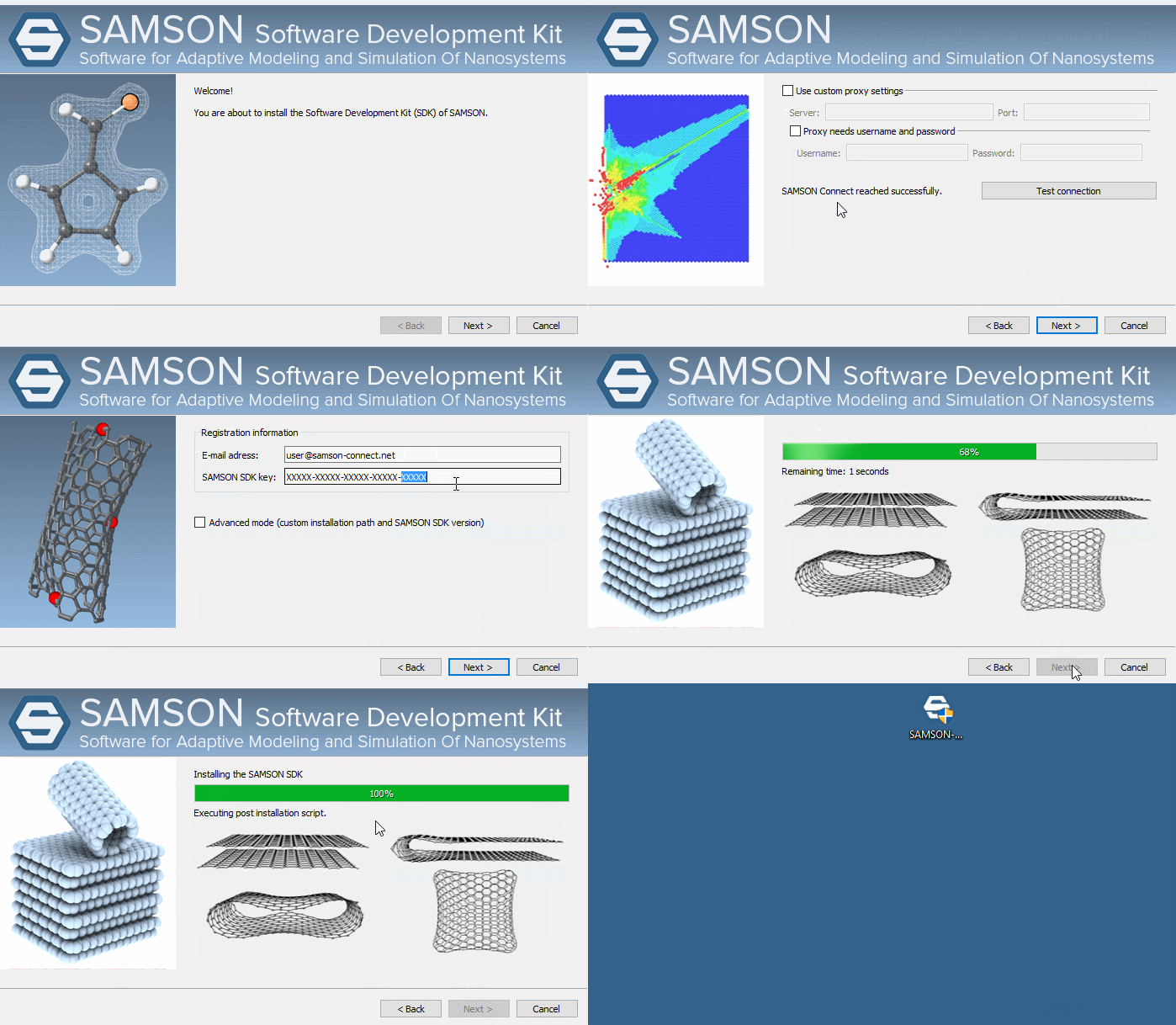
Double-click on the executable file and follow the installation steps.
By default, the SDK is installed into C:\Users\%USERNAME%\OneAngstrom folder. You can change this location during installation by choosing "Advanced mode". Inside this folder, you will find a subfolder corresponding to the version of the SDK (e.g., 11.0.1).
Installing on Linux#
-
Open the terminal and go to the folder where SAMSON SDK installer was saved:
-
Make the installer executable:
-
Run the installer (do not use
sudohere): -
Follow the installation steps.
Installing on macOS#
- Double-click the downloaded SAMSON-Developer-Setup.dmg file to make its contents available. A new window opens and shows the contents of the .dmg file, which should include SAMSON-Developer-Setup.app. Double-click SAMSON-Developer-Setup.app. When the security notification appears, press Open.
- Follow the installation steps.
- After the installation is done you may eject the .dmg by clicking the eject button in the Finder's sidebar.
The SAMSON SDK is installed by default in the $HOME/OneAngstrom/SAMSON-Sdks/ folder.
Step 3: Running SAMSON Debug#
After installation, verify the developer runtime by launching SAMSON Debug. This is the build you use to load and debug extensions during development.
If anything fails at this stage, the problem is usually one of these:
- Qt is installed but not discoverable
- the wrong compiler toolchain is active
- a required runtime path is missing from the environment
If needed, check the SAMSON Connect Forum.
Running on Windows#
By default, SAMSON and its SDK are installed in the C:\Users\%USERNAME%\OneAngstrom folder (referred to below as SDK_PATH).
- Go to
SDK_PATH\SAMSON-Sdks\11.0.1\SAMSON-Debug\Binaries. - Double-click
SAMSON-Core.exeorSAMSON-Core-Console.exe; this should launch the developer version of SAMSON.
Running on Linux#
By default, SAMSON and its SDK are installed in the $HOME/OneAngstrom folder (referred to below as SDK_PATH).
- Go to
SDK_PATH/SAMSON-Sdks/11.0.1/SAMSON-Debug/Binaries. - Open and edit the
SAMSON-Core.shfile. You need to provide the path to Qt installed on your system; modify the following line:
Save the file.
- To launch the developer version of SAMSON, open a terminal in this folder and execute
You may also need to make executable the following files placed in SDK_PATH/SAMSON-Sdks/11.0.1/SAMSON-Debug/Binaries: SAMSON-Core.sh and SAMSON-Core:
cd SDK_PATH/SAMSON-Sdks/11.0.1/SAMSON-Debug/Binaries
ls -la | grep "SAMSON-Core"
chmod +x SAMSON-Core*
For an easy launch (in terminal, from any folder), you may create an alias in your .bashrc file:
Running on macOS#
To launch the developer version of SAMSON, open a terminal and go to the ~/OneAngstrom/SAMSON-Sdks/11.0.1/SAMSON-Debug/Binaries folder
You may also need to make executable the following files placed in ~/OneAngstrom/SAMSON-Sdks/11.0.1/SAMSON-Debug/Binaries: SAMSON-Core-Console and SAMSON-Core:
cd ~/OneAngstrom/SAMSON-Sdks/11.0.1/SAMSON-Debug/Binaries
ls -la | grep "SAMSON-Core"
chmod +x SAMSON-Core*
What's next?#
After the SDK is installed and SAMSON Debug starts correctly, the usual next step is to generate a fresh extension project and build it.