Getting Started#
This page helps you install SAMSON, confirm platform requirements, launch it for the first time, and choose the best next steps for your workflow.
Use it as the main onboarding page before moving on to First look, Loading molecules, or SAMSON Connect.
Use this page when#
- You are installing SAMSON or checking whether your computer can run it.
- You have just launched SAMSON and need to know what to do next.
- You need the current public version, basic launch commands, or the first extension-management path.
You can skip this if#
- SAMSON is already installed and you only need interface orientation: go to First look: the interface.
- You only need to open a structure: go to Loading molecules.
- You already know the basics and need account, Marketplace, or key management: go to SAMSON Connect.
What SAMSON is#
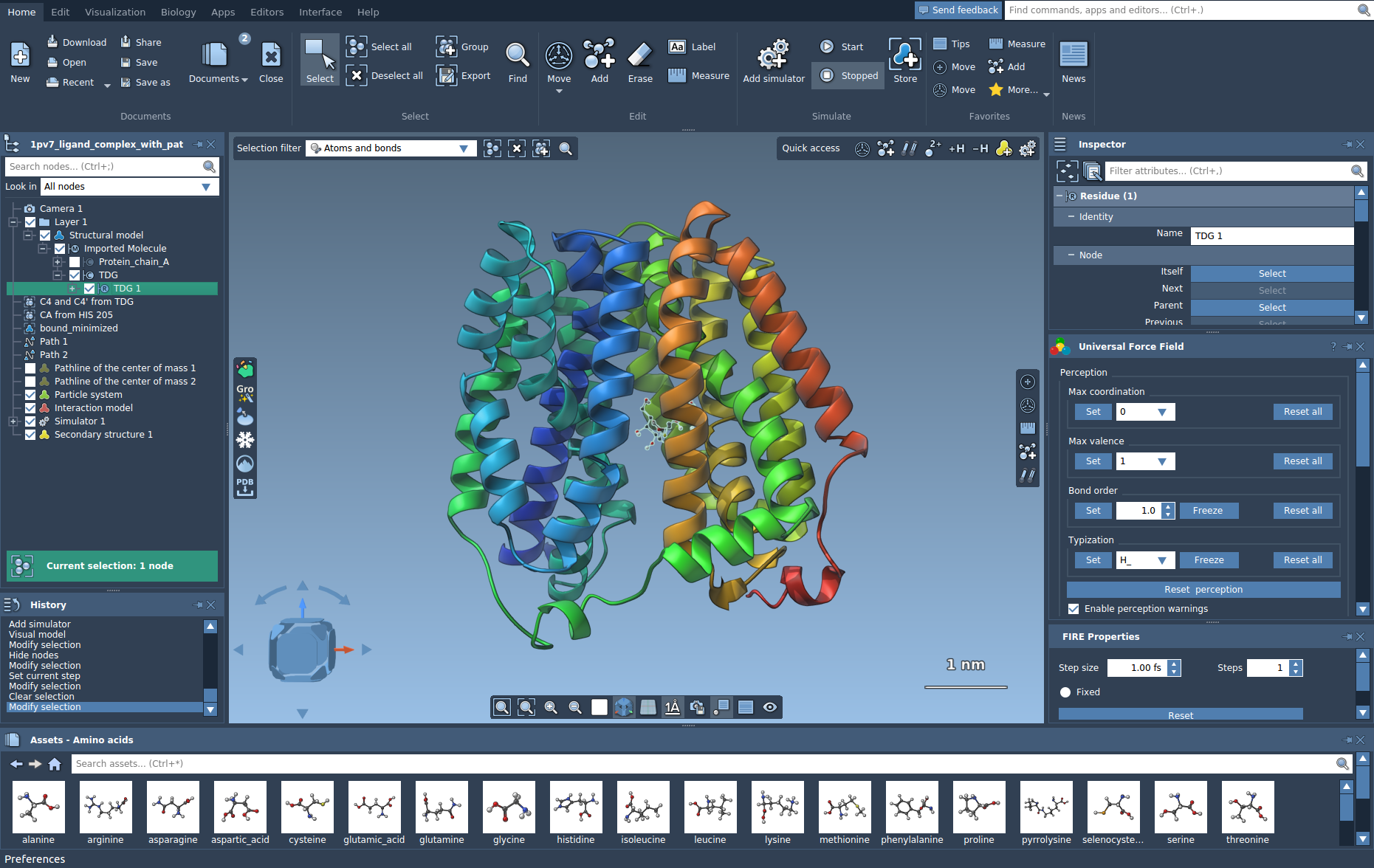
SAMSON is a software platform for computational nanoscience. Its generic, open architecture makes it suitable for life science, material science, physics, electronics, chemistry, and education. SAMSON stands for Software for Adaptive Modeling and Simulation Of Nanosystems. SAMSON is developed by OneAngstrom.
Quick Start Guide#
For a very brief introduction in SAMSON, you can check out the Quick Start Guide in PDF format.
Start with these guides#
- Requirements and platforms: check operating-system support, hardware needs, and Linux dependencies.
- Install SAMSON: follow the installer workflow from download to first launch.
- Webinars: watch recent onboarding and release overviews without interrupting the setup flow.
Webinars#
Recent onboarding and release-webinar recordings now live on Webinars so that this page can stay focused on installation and first launch.
Current version#
The current version of SAMSON is 2026 R1.
Versioning
Use Versioning for details about version numbers.
Installing SAMSON#
- Start with Requirements and platforms to confirm operating-system support, hardware expectations, and Linux dependencies.
- Continue with Install SAMSON for the installer workflow, sign-in step, and key entry.
- Use Troubleshooting if installation or graphics setup does not behave as expected.
If you only need the step-by-step installer instructions, go directly to Install SAMSON.
Starting SAMSON#
Here is how you start SAMSON depending on your operating system.
Windows#
On Windows, start SAMSON from the Start menu. Typing SAMSON in the search box might just lead you there. Else, SAMSON executable can be found in the following folder:
C:/Users/%USERNAME%/OneAngstrom/SAMSON-Application/11.0.0/Binaries/SAMSON-Core.exe
Mac#
On Mac, start SAMSON from Launchpad or from the Applications folder. The most recent SAMSON version will be launched.
SAMSON is installed in the following folder:
$HOME/Applications/SAMSON.app/
Linux#
You can launch SAMSON like other apps via the Apps dashboard.
You can also directly launch the SAMSON-Core.sh script from the SAMSON installation folder path (it should be ~/OneAngstrom/SAMSON-Application/11.0.0/Binaries):
./SAMSON-Core.sh
You may create an alias in your ~/.bashrc or ~/.zprofile:
alias samson='$HOME/OneAngstrom/SAMSON-Application/11.0.0/Binaries/SAMSON-Core.sh'
Now, open a new terminal and execute samson.
If you have issues on Linux with AMD/ATI graphics cards, use the Troubleshooting section.
What are SAMSON Extensions?#
SAMSON has an open architecture that lets you extend and adapt it to your needs by downloading SAMSON Extensions from SAMSON Connect. SAMSON Extensions come in many flavors, including apps, editors, controllers, models, and parsers. They help users build models, perform calculations, run simulations, visualize results, and adapt SAMSON to a specific domain or workflow.
Extending SAMSON#
The first time you start SAMSON, it downloads a set of default SAMSON Extensions from SAMSON Connect. To customize your installation later, sign in to your account, go to the Marketplace, and choose the SAMSON Extensions you need.
Read Extending SAMSON when you are ready to manage extensions in more detail or explore the SDK path.
Related pages#
Next step#
- First look: the interface for a fast orientation to the main parts of SAMSON.
- Loading molecules to open a first structure and understand documents.
- SAMSON Connect if you need downloads, keys, extensions, or shared resources.
- Start here if you want the full onboarding path in one place.