Install SAMSON#
This guide walks you through downloading the installer, signing in with your SAMSON account, entering your SAMSON key, and completing the installation on Windows, Linux, and macOS.
Use it when you want the installation procedure without the extra onboarding material from the main Getting Started page.
What you will learn#
This page covers the installation flow from download to first launch. It also points to the best follow-up pages if you need platform requirements, troubleshooting, or extension setup.
Before you install#
- Confirm the supported operating system and graphics requirements in Requirements and platforms.
- Make sure you can sign in to SAMSON Connect and access your SAMSON key.
- If you need an older release, review FAQ: How to install an older version of SAMSON.
Download the installer#
- Go to Download SAMSON.
- Sign in to SAMSON Connect or create an account.
- Download the installer for your operating system.
During installation you will be asked for:
- the email address used for your SAMSON Connect account
- your SAMSON key
Where can I find my SAMSON key?
You can find your SAMSON key on SAMSON Connect in Account > Settings and on the download page. See Where can I get my SAMSON Key?.
Tip
If you want to install an older version of SAMSON, please check How to install an older version of SAMSON.
Note
SAMSON Extensions are updated only for the latest version of SAMSON and they are updated automatically when you launch SAMSON. So, we encourage you to update SAMSON when its new version is available. SAMSON regularly checks for updates. The update can also be invoked manually directly from SAMSON via Interface menu > Update SAMSON.
Run the installer#
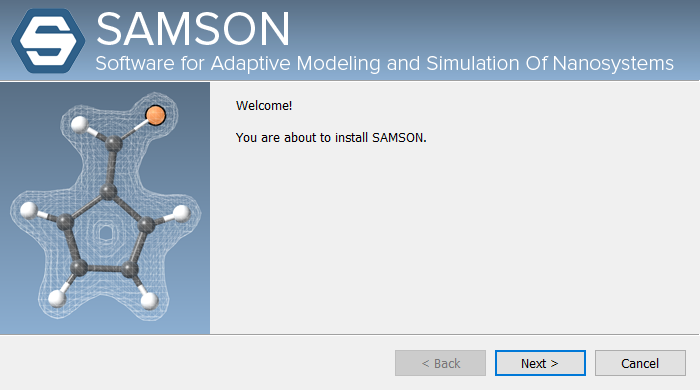
Start the installer you downloaded. The setup then guides you through:
- accepting the license agreement
- [optional step] configuring a proxy if your network requires one
- entering your account email and SAMSON key
- choosing the default or advanced installation mode
- downloading and installing the selected SAMSON version
Linux-specific installer note
On Linux, open a terminal in the download folder and run (make the installer executable and launch it):
cd ~/Downloads
chmod +x ./SAMSON-Setup.run
QT_QPA_PLATFORM=xcb ./SAMSON-Setup.run
If you run into OpenGL or dependency issues, continue with Troubleshooting.
Note
Intel graphics cards may currently cause issues. If you have one, the SAMSON installer will generate a warning. You may choose to ignore the warning, especially if you also have a non-Intel graphics card (NVIDIA or AMD).
If your network uses a proxy, use the installer's Test connection button before continuing.
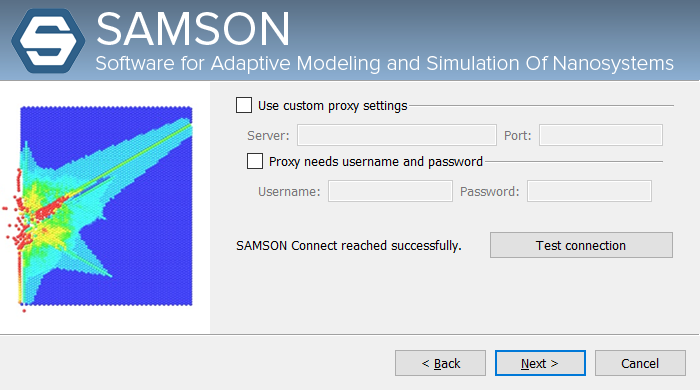
At this point, the SAMSON installer checks that it can reach SAMSON Connect - the installer needs to download SAMSON and SAMSON Extensions. If it can, this page shows the message "SAMSON Connect reached successfully". Else, you might have to enter proxy parameters (you may have to ask your system administrator for information). Use the Test connection button to check that the proxy parameters you entered are valid.
Then enter the email address and SAMSON key associated with your account:
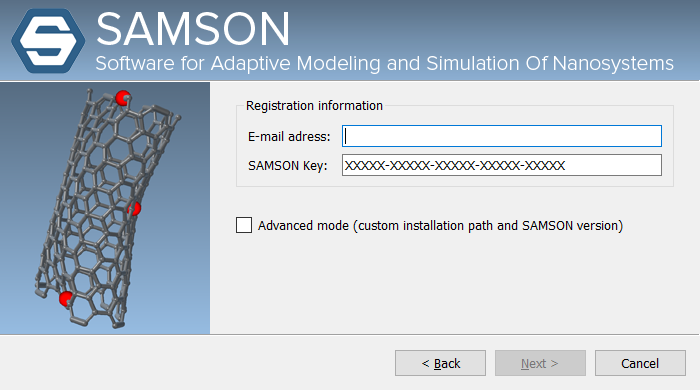
If you enable Advanced mode, you can choose a custom installation path and select a specific SAMSON version.
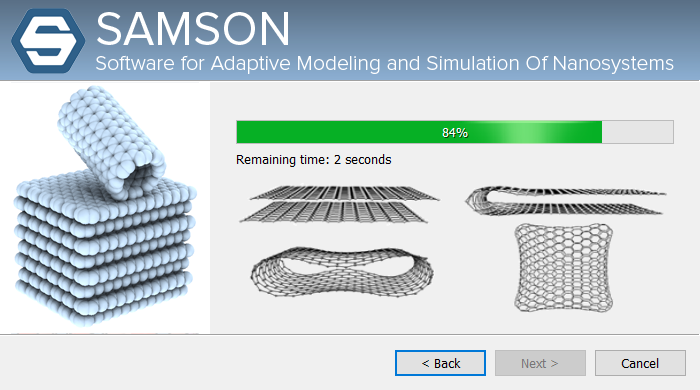
When the installer starts the download, it retrieves SAMSON from SAMSON Connect and installs it locally:
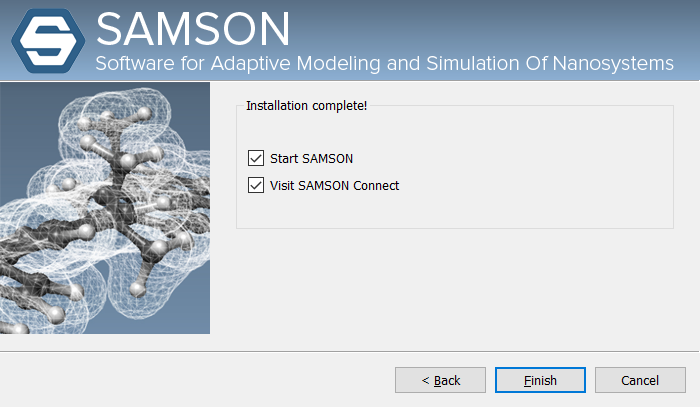
When the installation finishes, the final page lets you start SAMSON and open SAMSON Connect:
After installation#
- Launch SAMSON for the first time using Getting Started.
- Review Extending SAMSON to customize your installation with SAMSON Extensions.
- If you are on macOS and file access is limited, see Full Disk Access In MacOS.