UMA Force Field#
This tutorial shows how to use the UMA Force Field interaction model in SAMSON for interactive energy and force evaluation with the UMA family of machine-learning atomistic models.
UMA is well suited to fast geometry refinement, exploratory relaxation, and qualitative force analysis. In the current extension, you can choose between:
- UMA-S (2.3 GB, v1.2) for the default fast workflow
- UMA-S (1.1 GB, v1.1) for a lighter legacy option
- UMA-M (11.7 GB, v1.1) for a larger model when you want more capacity
What you will learn#
In this tutorial, you will learn how to set up and use the UMA Force Field interaction model in SAMSON for machine-learning-based atomistic energy and force evaluation.
Before you start#
Before creating a UMA simulation in SAMSON, make sure that:
- the UMA Force Field extension is installed
- the Python Scripting extension is installed and up to date
- your machine can install Python packages on first use
Note
On first use, UMA prepares a dedicated Python environment and may request access to the UMA models. Follow the instructions shown in SAMSON carefully. It is normal for this first setup to take some time, and you may need to create the interaction model again once the setup is complete.
Set up UMA Force Field#
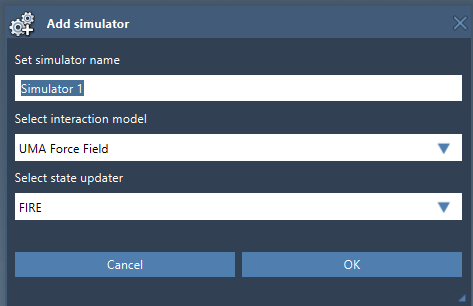
- Open a document containing the molecular or materials system you want to evaluate with UMA.
- Add a simulator via Edit > Simulate > Add simulator.
- Select UMA Force Field in the list of interaction models.
- Choose the state updater you want to use for the simulation, for example FIRE.
- Press the OK button.
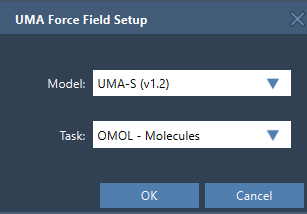
The UMA Force Field Setup window then appears. In this window, choose:
- the Model
- the Task
The available tasks correspond to different application domains:
- OMOL - Molecules for molecular systems; this is the only task that uses total charge and spin multiplicity in the UI
- OMAT - Inorganic materials for bulk inorganic materials workflows
- ODAC - MOFs for MOF and direct-air-capture style adsorption workflows
- OC20 - Catalysis for catalytic surfaces and adsorbates
- OMC - Molecular crystals for molecular-crystal systems
Tip
Start with UMA-S unless you already know that you need the larger UMA-M model.
Run the UMA simulation#
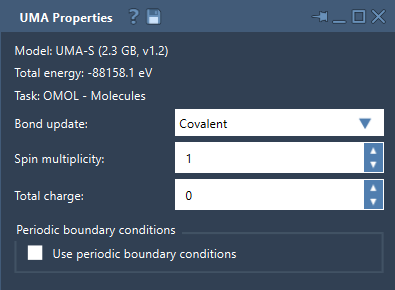
After the environment is ready and the model can be accessed, SAMSON starts the UMA backend and loads the selected model. Once the UMA Properties window appears, you can start the simulation:
- Press Edit > Simulate > Start.
- Wait for the first UMA evaluation to complete.
- Interactively move atoms or refine the structure while UMA updates energies and forces.
At startup, the properties window may briefly show that the energy is not available yet. Once the first evaluation succeeds, the total energy is displayed in the window.
Adjusting UMA properties#
While the simulation is running, you can modify the main UMA controls from the UMA Properties window.
Bond update mode#
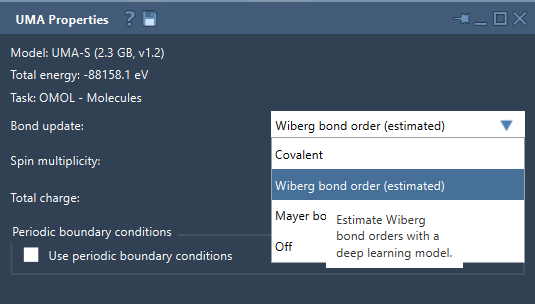
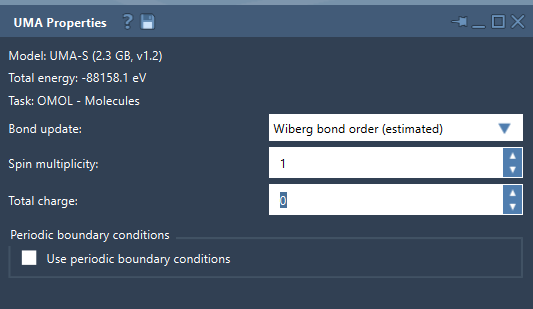
The Bond update list lets you choose how the bond graph is handled during the simulation:
- Covalent recomputes covalent bonds from the current structure
- Wiberg bond order (estimated) estimates Wiberg bond orders with a deep-learning model
- Mayer bond order (estimated) estimates Mayer bond orders with a deep-learning model
- Off leaves the current bond graph unchanged
Note
The Wiberg and Mayer modes are estimated bond-order visualizations. Use them for interactive exploration, but confirm important conclusions with your reference method.
Charge and spin multiplicity#
For the OMOL - Molecules task, the properties window also lets you edit:
- Spin multiplicity
- Total charge
Use values consistent with the system you want to model. For molecular systems, these settings are part of the request sent to UMA.
Periodic boundary conditions#
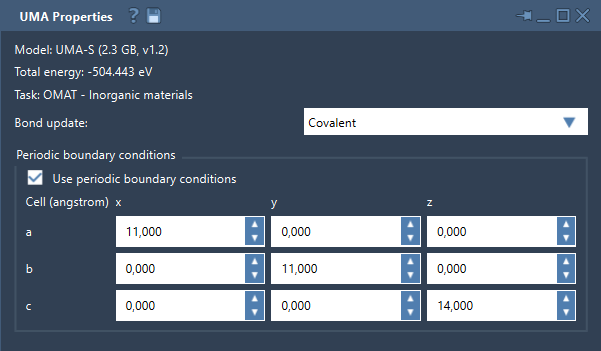
The properties window also includes a Periodic boundary conditions group with:
- a checkbox to enable or disable periodic boundary conditions
- a 3 x 3 cell matrix in angstroms
For periodic workflows, verify the cell carefully before interpreting the results.
Recommended workflow#
For practical use, the following workflow works well:
- Choose the task that matches your system type.
- Start with UMA-S for rapid feedback.
- For OMOL, set total charge and spin multiplicity consistently.
- For periodic systems, check the unit cell before interpreting the result.
- Use UMA to screen, refine, and explore structures, then confirm final results with a higher-accuracy reference method when needed.
Related tutorials#
- Generate crystal models for building periodic or crystalline inputs.
- Create molecular boxes with Molecular Box Builder for preparing larger molecular systems.
- Universal Force Field for a classical force-field based route.
Next step#
Use UMA on a small representative system first, then apply the workflow to the structure or screening task you want to study.