Interaction Designer#
Use the Interaction Designer in SAMSON to create 2D interaction diagrams from molecular structures, inspect detected contacts such as protein-ligand contacts, and design molecules directly in 2D. The 2D document stays synchronized with the 3D viewport, so selection, editing, and navigation remain connected.
The Interaction Designer has two main modes:
- Creating interaction diagrams: use the Home > Diagram command to automatically create an interaction diagram based on the current selection, or the whole document if nothing is selected.
- Creating new molecules in 2D: use the Edit > Design command to start a new molecule.
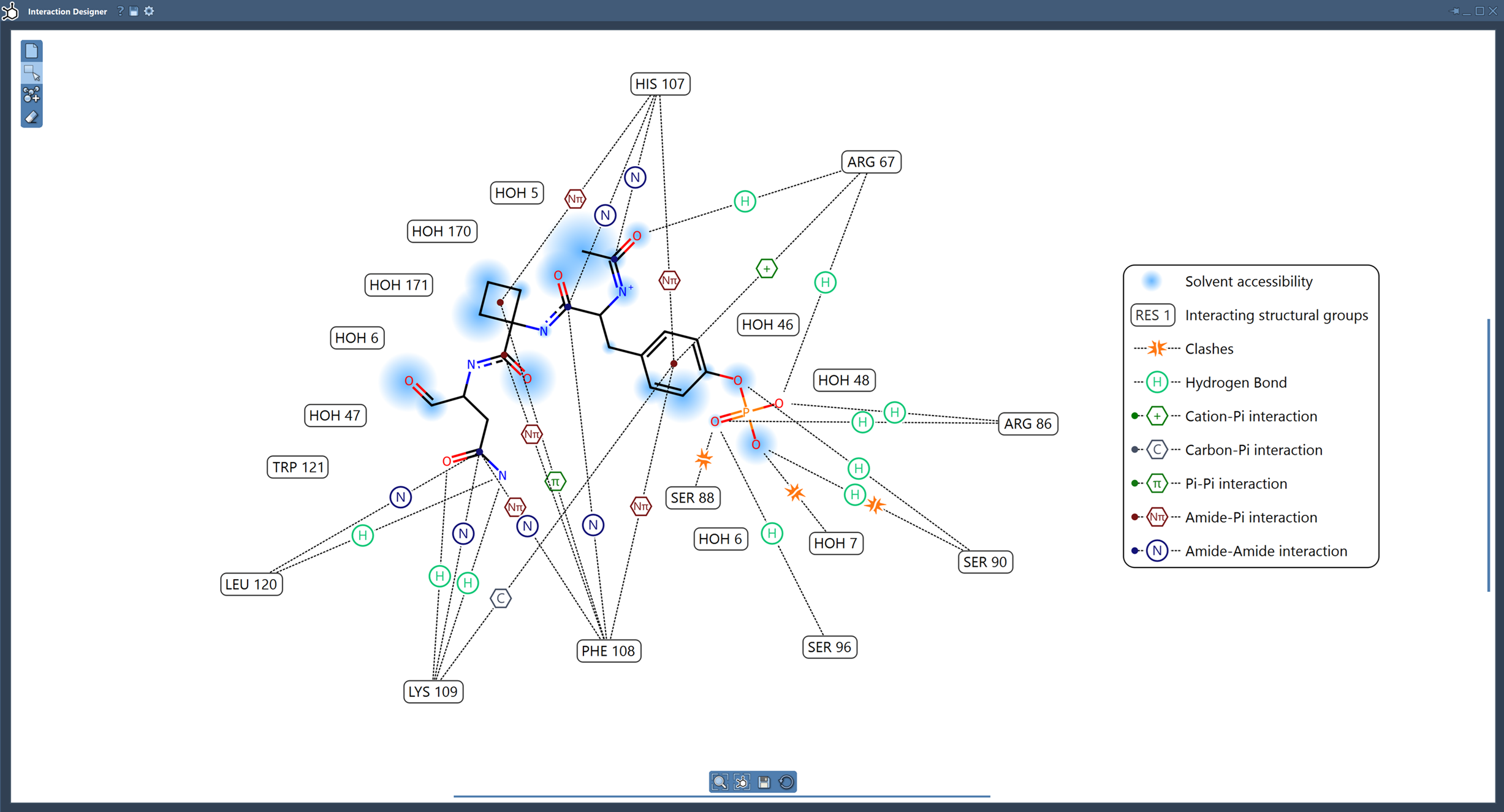
The Interaction Designer keeps the 2D documents synchronized with the 3D viewport: selecting, adding, and removing atoms and fragments is performed in both 2D and 3D.
Acknowledgments
The Interaction Designer uses functionality from RDKit.
What this page covers#
This page explains how to create interaction diagrams, read the supported contact categories, edit molecules in 2D, and export diagrams from the Interaction Designer.
Create interaction diagrams#
Use the Home > Diagram command to automatically create an interaction diagram based on the current selection, or the whole document if nothing is selected.

The Interaction Designer provides the following features when creating interaction diagrams:
- Tight integration with the 3D viewport: select structures, atoms, and zoom on them. Click on an atom or structure to select it, double-click to zoom on it.
- Show the binding pocket for protein-ligand interactions.
- Show solvent accessibility of ligand atoms.
- Show interacting residues and structural groups. See the list of supported interactions.
-
Editable 2D diagram:
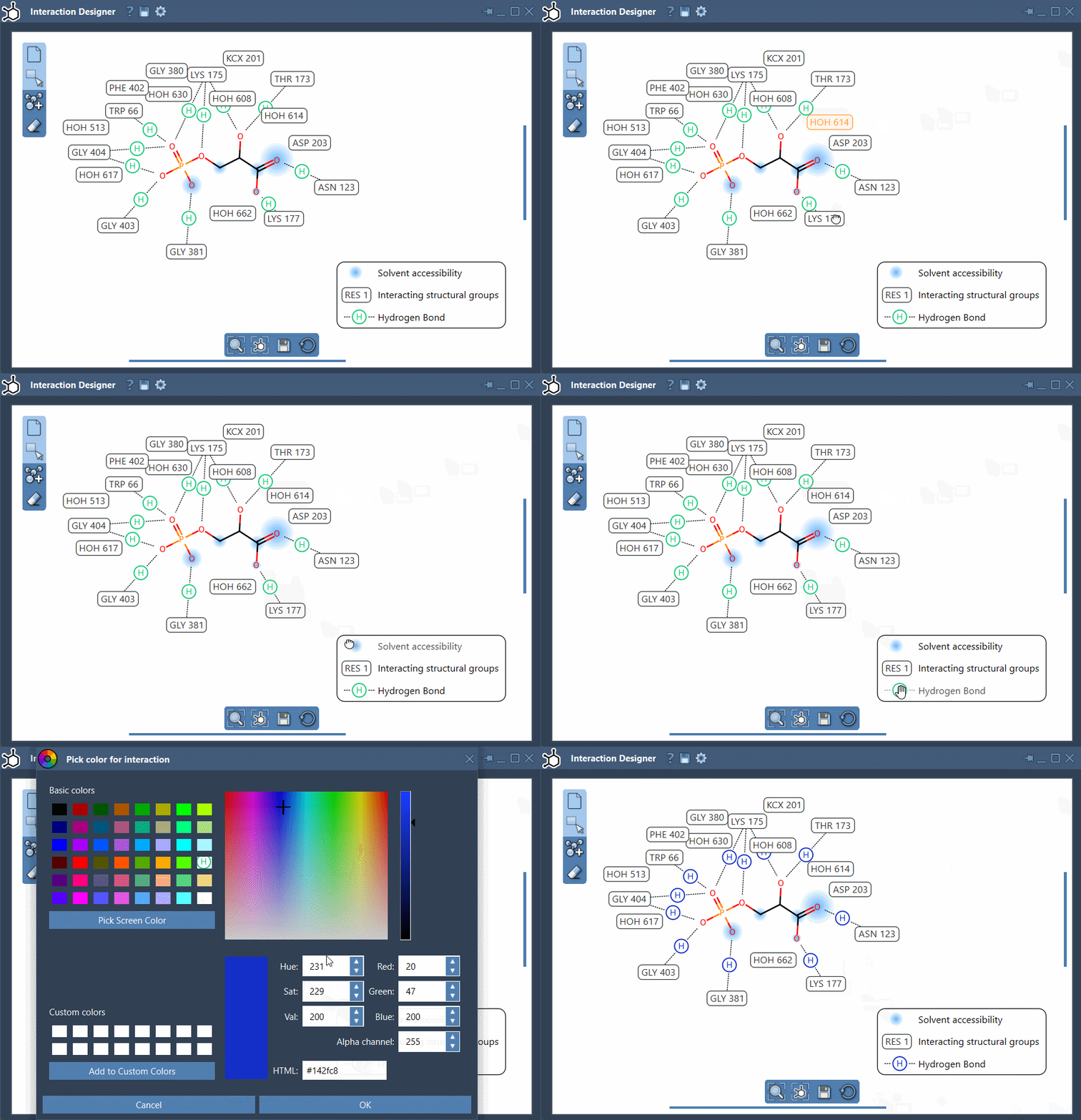
- You can move all labels and interaction symbols to control the diagram layout, as well as the caption/legend.
- You can hide and show interactions by clicking on their name or icon in the caption/legend.
- You can change the interaction colors by double-clicking on their name or icon in the caption/legend. You can restore the colors in the Interaction Designer settings that you can access via its window title bar.
Tip
Use the bottom menu of the Interaction Designer to update the view and align the 2D and 3D views.
You can zoom in/out by holding Ctrl/Cmd and using the scroll button of the mouse.
To translate the diagram, hold either middle mouse button and right mouse button and move the mouse.
Video tutorial#
You can learn how to create and edit 2D and 3D protein-ligand interaction diagrams from the following extract of the SAMSON 2025 webinar:
Supported interactions#
The Interaction Designer is inspired by the contact families used by the Arpeggio tool from the PDBe team. The categories below describe the current Interaction Designer implementation.
Note
The detector is based on atom categories and geometric criteria such as distances, ring centroids, and angles. A detected contact means that the geometry satisfies the selected criteria; it does not prove that the contact is stabilizing or estimate an interaction energy.
Atom-atom interactions#
| Interaction | Description |
|---|---|
| Steric clash | Atoms are closer than allowed by the covalent or van der Waals contact criterion. |
| Hydrogen bond | Hydrogen-bond donor and acceptor satisfying the implemented distance criterion and, when explicit hydrogens are present, the donor-H-acceptor angle criterion. |
| Halogen bond | Halogen-bond donor and acceptor satisfying the implemented van der Waals contact and donor-geometry criteria. |
| Ionic interaction | Atoms or groups assigned opposite ionisable categories within the ionic-interaction distance cutoff. |
| Metal coordination | Metal atom and potential coordinating acceptor atom within the metal-coordination distance cutoff. |
| Carbonyl–carbonyl contact | Carbonyl oxygen to carbonyl carbon contact within the carbonyl–carbonyl distance cutoff. |
| Aromatic contact | Atom-level proximity between atoms assigned to aromatic systems within the aromatic-contact distance cutoff. |
Water is handled as participant metadata when a contact involves water from the environment. The current implementation does not materialize a separate water-specific interaction type.
Atom-plane interactions#
| Interaction | Description |
|---|---|
| Carbon–π interaction | Weakly electropositive carbon atom directed toward an aromatic π system within the atom-plane distance and angle criteria [ref]. |
| Cation–π interaction | Positively ionisable atom or group directed toward an aromatic π system within the atom-plane distance and angle criteria [ref]. |
| Hydrogen-bond donor–π interaction | Hydrogen-bond donor directed toward an aromatic π system within the atom-plane distance and angle criteria [ref]. |
| Halogen–π interaction | Halogen-bond donor directed toward an aromatic π system within the atom-plane distance and angle criteria [ref]. |
| Methionine sulfur–π interaction | Methionine sulfur atom near an aromatic ring within the methionine sulfur-ring distance cutoff [ref]. |
Plane-plane interactions#
Group-group/plane interactions#
| Interaction | Description |
|---|---|
| π–π interaction | Two aromatic ring systems whose centroids satisfy the current group-centroid distance screening criterion. |
| Amide–amide interaction | Two amide groups whose centroids satisfy the current group-centroid distance screening criterion. |
| Amide–π interaction | Amide group and aromatic ring system whose centroids satisfy the current group-centroid distance screening criterion [ref]. |
Create new molecules in 2D#
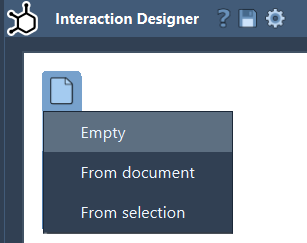
Use the Edit > Design command to start drawing a new molecule in 2D.
Note
The Interaction Designer keeps the 2D documents synchronized with the 3D viewport: selecting, adding, and removing atoms and fragments is performed in both 2D and 3D.
Tip
To learn about other ways to build molecules in SAMSON, especially in 3D, use Building molecules.
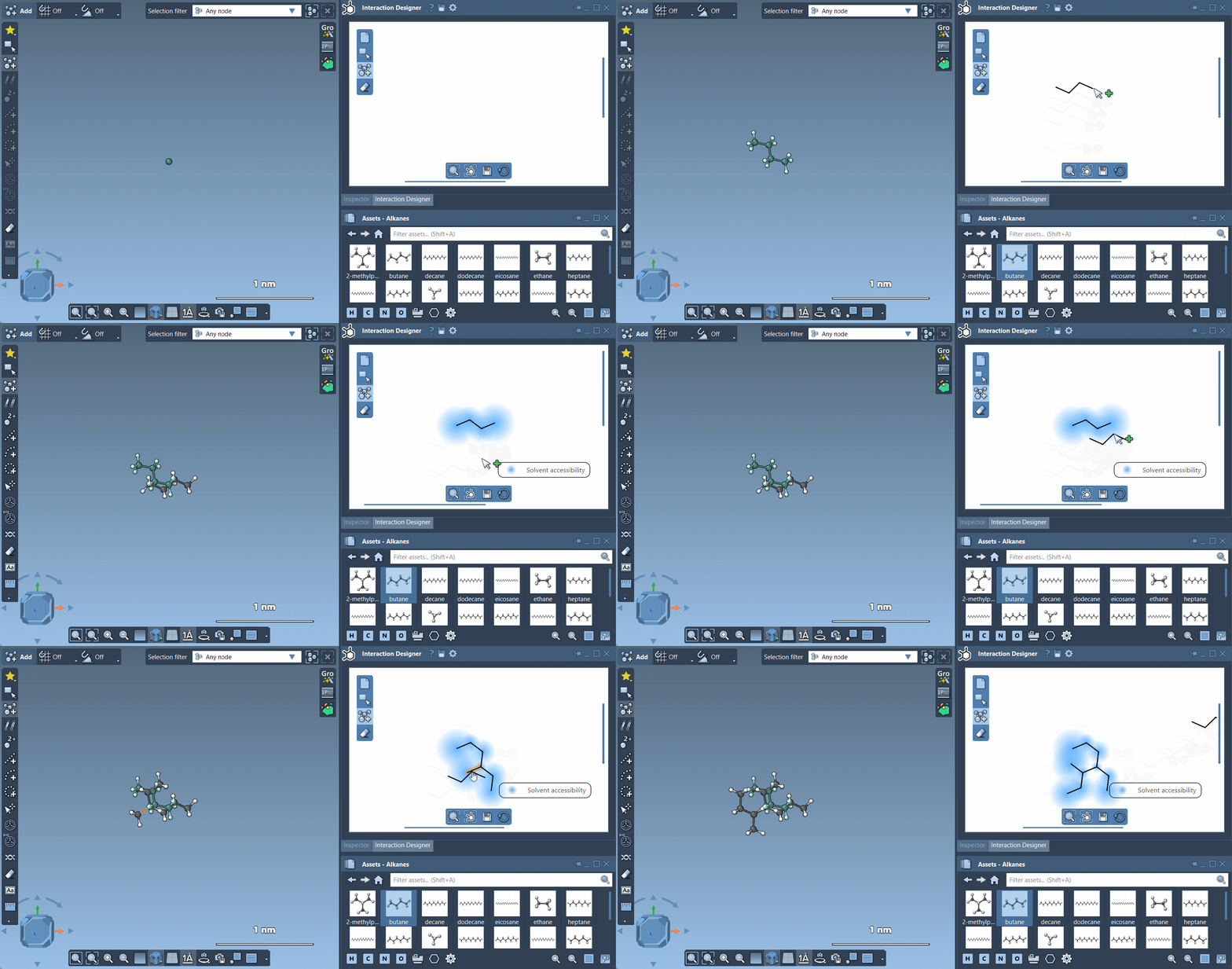
You can start building a molecule:
- from scratch,
- starting from a molecule in the active document,
- starting from the current selection.
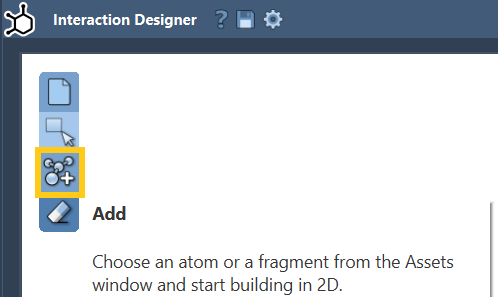
In the left panel of the Interaction Designer, click on  Add - this will switch it into the building mode with the Carbon atom set as the default atom for building.
Click anywhere in the designer window to add an atom. To add another atom, click on the atom to which you would like to connect it.
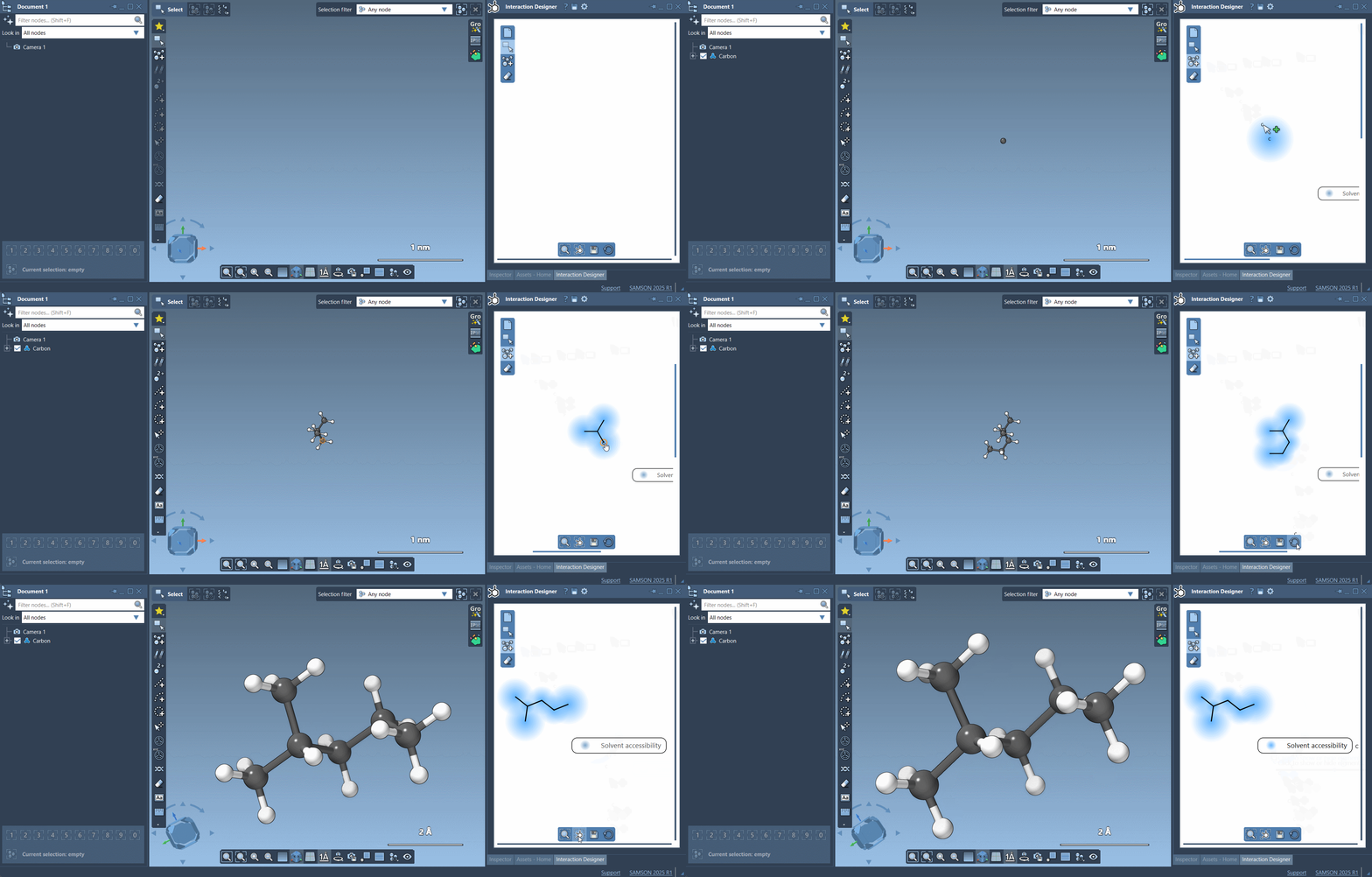
Tip
You can switch off the display of solvent accessibility by clicking on it in the legend.
Tip
Use the bottom menu of the Interaction Designer to update the view and align the 2D and 3D views.
You can zoom in/out by holding Ctrl/Cmd and using the scroll button of the mouse.
To translate the diagram, hold either middle mouse button and right mouse button and move the mouse.
You can use any atom element or any fragment to build molecules in 2D. You can change to a different atom element or a fragment using the Asset Browser (1).
- The Asset Browser provides access to the assets (molecule fragments, etc.) included by default in SAMSON together with the assets you can obtain from SAMSON Connect.
To open it use: Interface > Assets, , : Ctrl+4, : Cmd+4
Build with atoms#
You can change to another atom element via the Assets Browser in two ways.
For H, C, N, O atoms, you can use one of the buttons at the bottom of the Asset Browser.
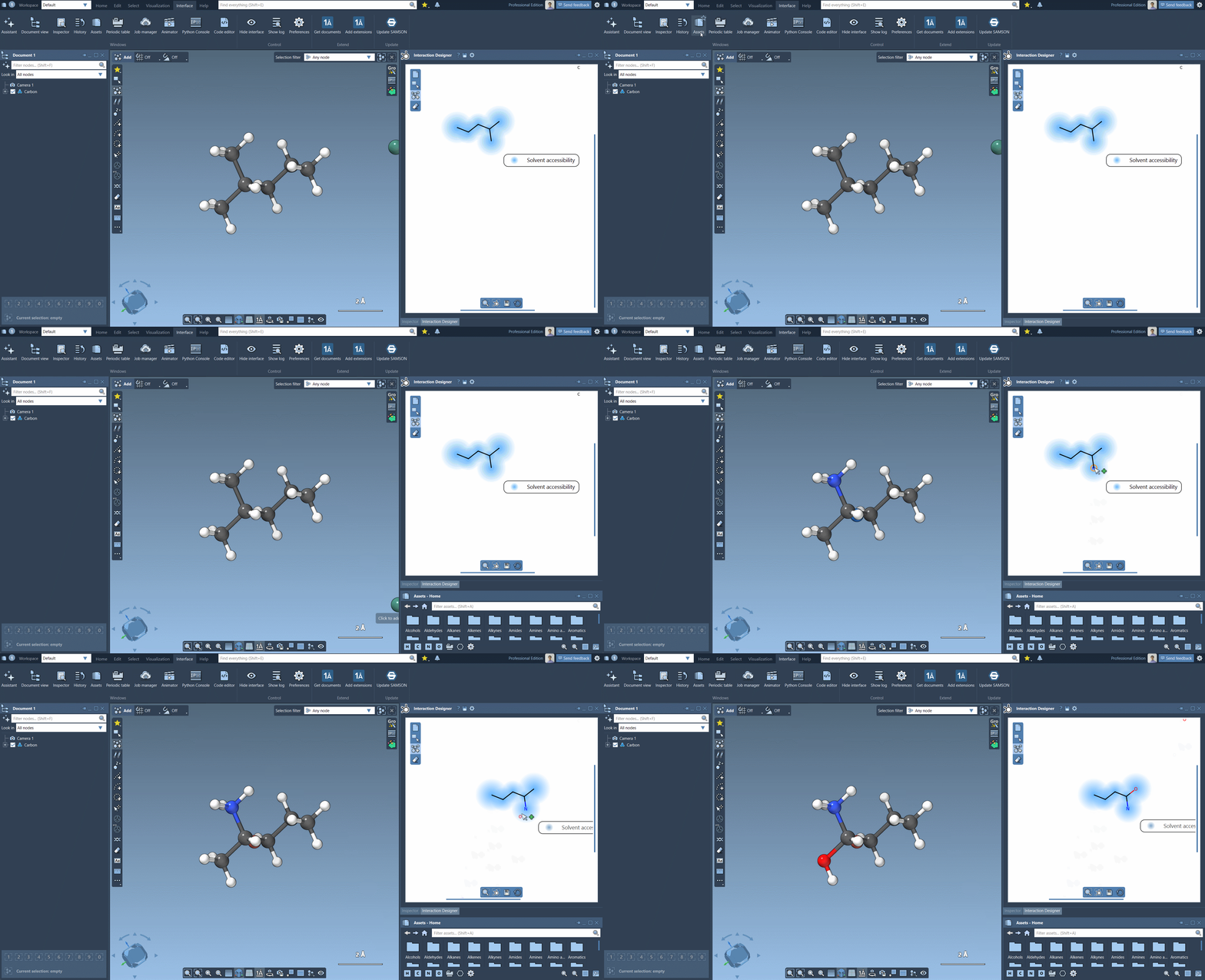
For other atomic elements, open the Periodic table  (1) and click on the desired element.
- Asset Browser > Periodic Table or Interface > Periodic Table,
, : Ctrl+5,
: Cmd+5
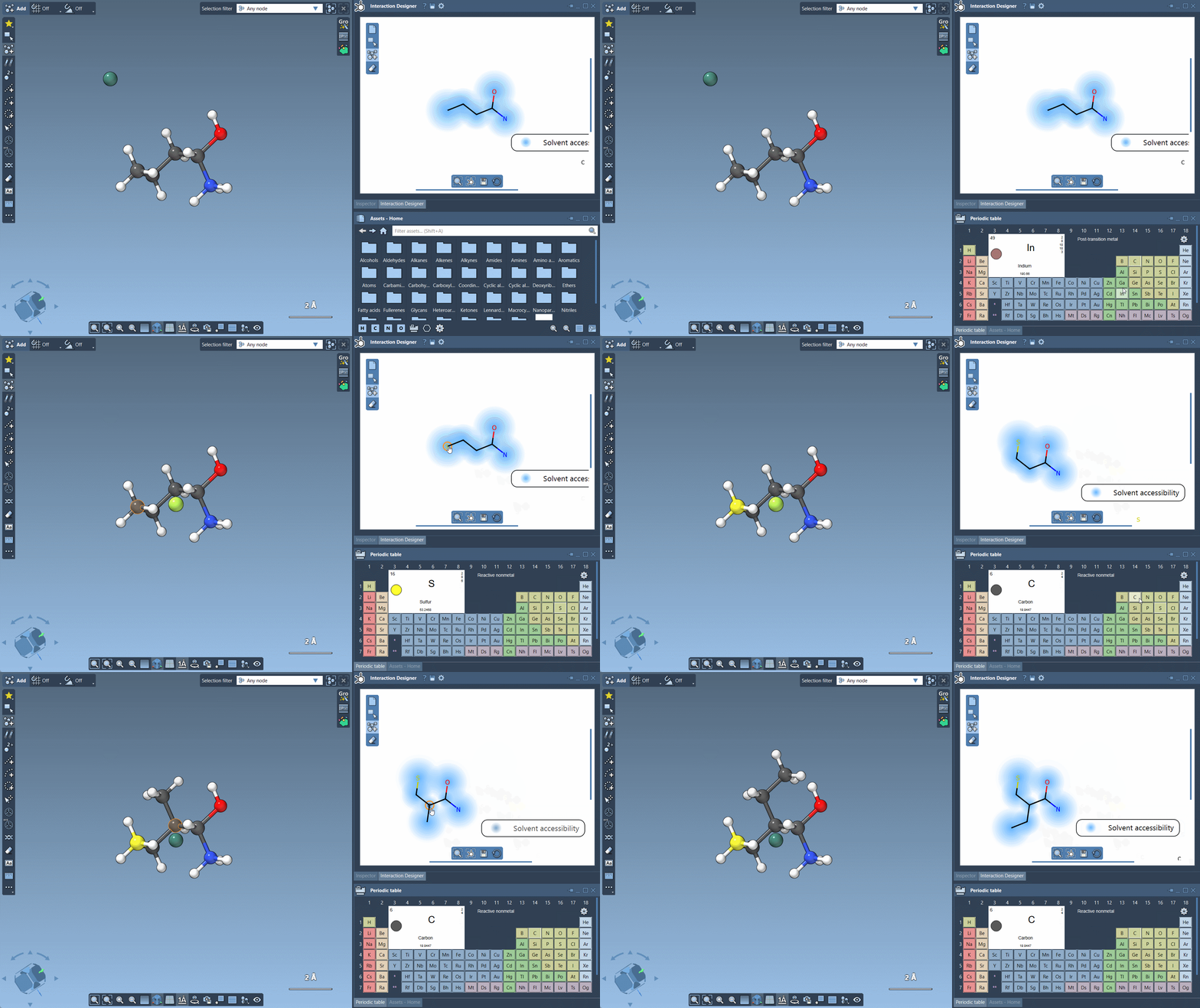
Note
Clicking in the designer on an atom while having a different atom element chosen as the atom for building will modify the clicked atom type.
Build with fragments#
To use a fragment for building, choose it from the Assets Browser.
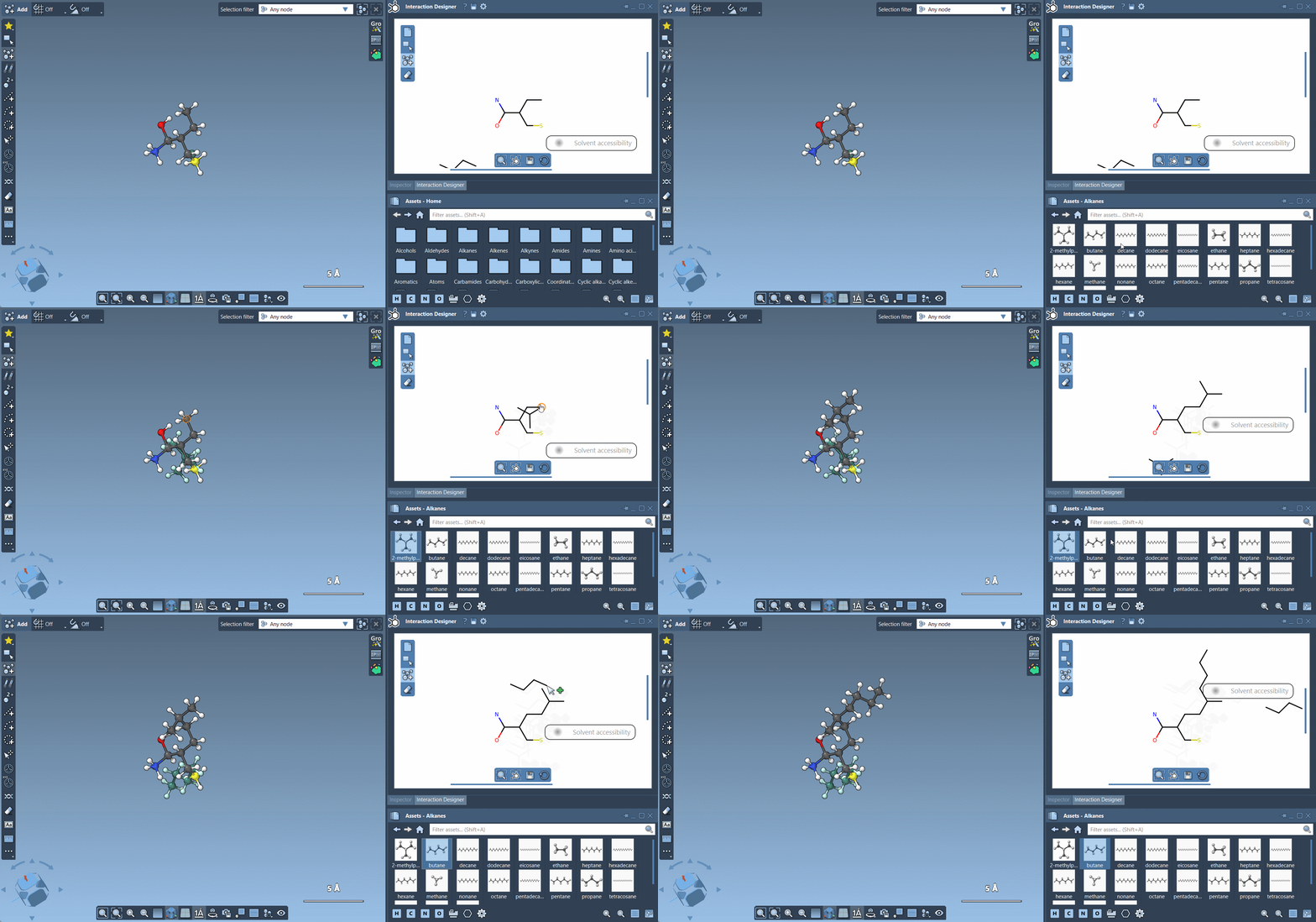
You can change the pivot atom in the fragment used for building. For that hold Ctrl/Cmd and choose the desired pivot atom.
Erase atoms#
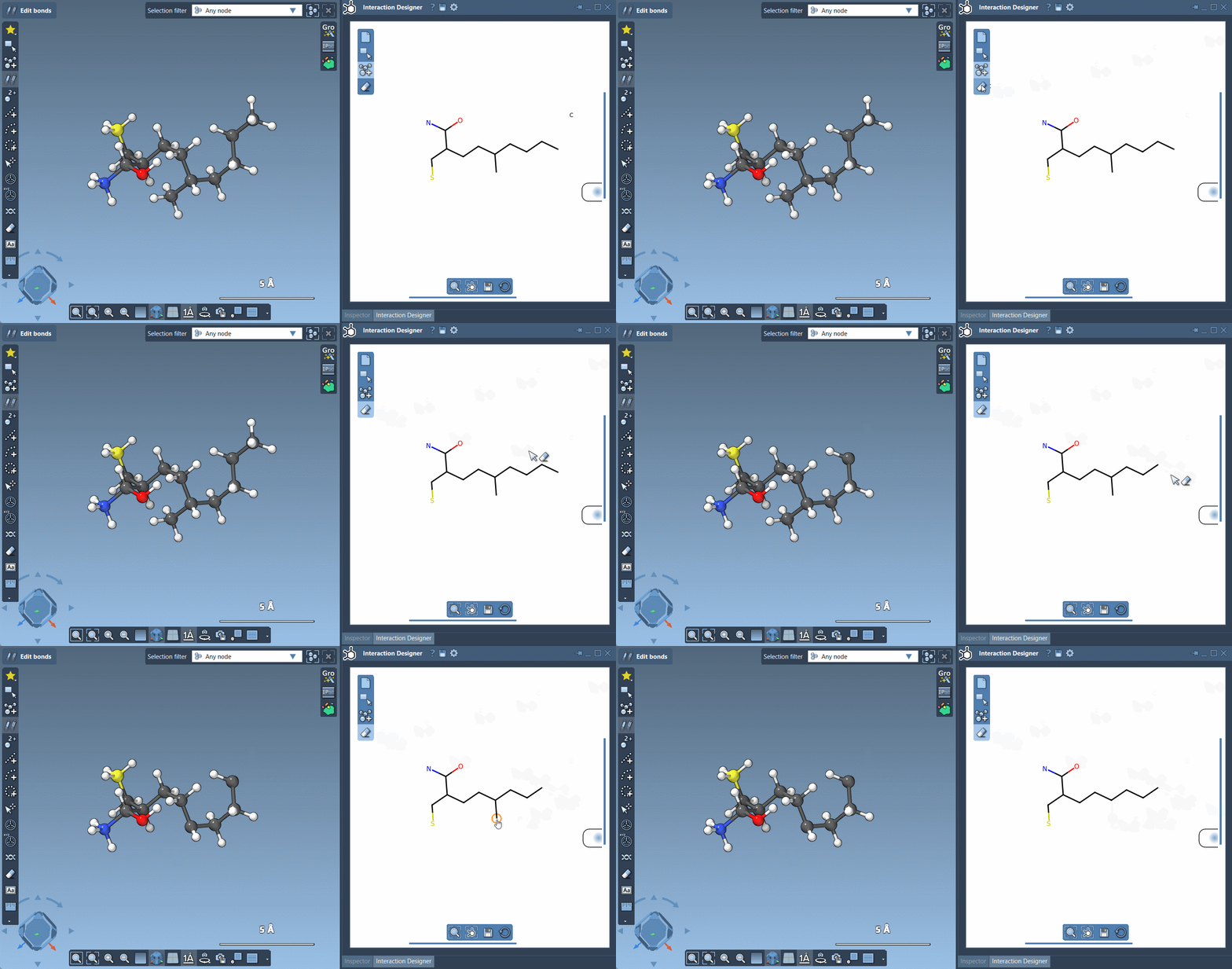
To erase atoms, click on  Erase in the left panel of the Interaction Designer and then click on the atoms you want to delete.
Export interaction diagrams and 2D sketches#
You can save your interaction diagrams and 2D drawings of molecules in various image formats, including png, jpg, jpeg, bmp, and svg. For that, click on  Save in the bottom panel of the Interaction Designer.